> ## Documentation Index
> Fetch the complete documentation index at: https://docs.coinpaprika.com/llms.txt
> Use this file to discover all available pages before exploring further.
# Connect Claude Desktop or Cursor
> Step-by-step guide to connect your AI development environment to the CoinPaprika MCP Server for real-time cryptocurrency data access
## What you'll learn
This tutorial shows you how to connect Claude Desktop or Cursor to the CoinPaprika MCP Server to access real-time cryptocurrency data. By the end, you'll have live crypto market information available directly in your AI conversations.
## Prerequisites
Before connecting to the CoinPaprika MCP server, ensure you have:
* [Claude Desktop](https://claude.ai/desktop) or [Cursor](https://cursor.sh/) installed on your system
* Basic familiarity with configuration files
* Stable internet connection
***
## Quick Configuration
### Claude Desktop
Find your Claude Desktop configuration file:
* **macOS**: `~/Library/Application Support/Claude/claude_desktop_config.json`
* **Windows**: `%AppData%/Claude/claude_desktop_config.json`
* **Linux**: `~/.config/Claude/claude_desktop_config.json`
If the file doesn't exist, create it with this content:
```json theme={"dark"}
{
"mcpServers": {
"coinpaprika": {
"command": "npx",
"args": ["mcp-remote@latest", "https://mcp.coinpaprika.com/sse"]
}
}
}
```
If the file already exists, add our server to the existing `mcpServers` object:
```json theme={"dark"}
"coinpaprika": {
"command": "npx",
"args": ["mcp-remote@latest", "https://mcp.coinpaprika.com/sse"]
}
```
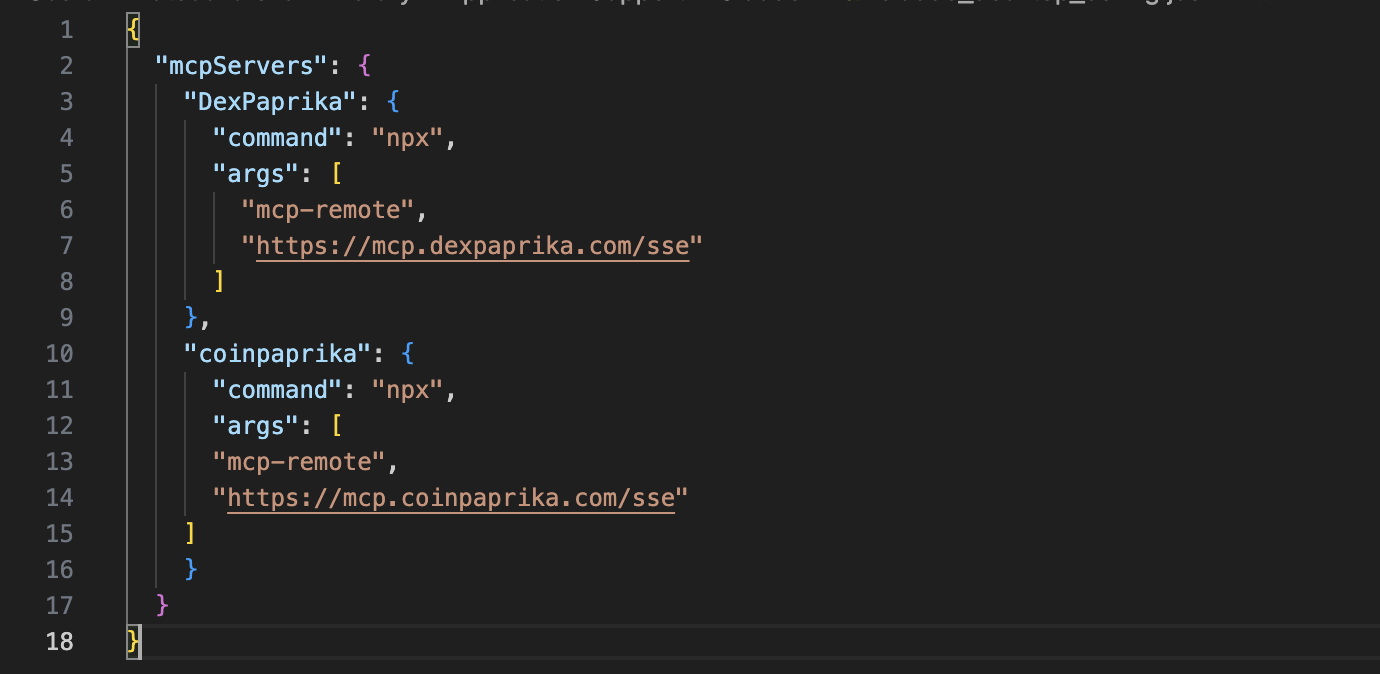 Save the file and restart Claude Desktop for the changes to take effect.
### Cursor
1. In Cursor, go to **Settings** (Cmd/Ctrl + ,)
2. Navigate to **Tools & Integrations** in the left sidebar
3. Click **New MCP server**
Save the file and restart Claude Desktop for the changes to take effect.
### Cursor
1. In Cursor, go to **Settings** (Cmd/Ctrl + ,)
2. Navigate to **Tools & Integrations** in the left sidebar
3. Click **New MCP server**
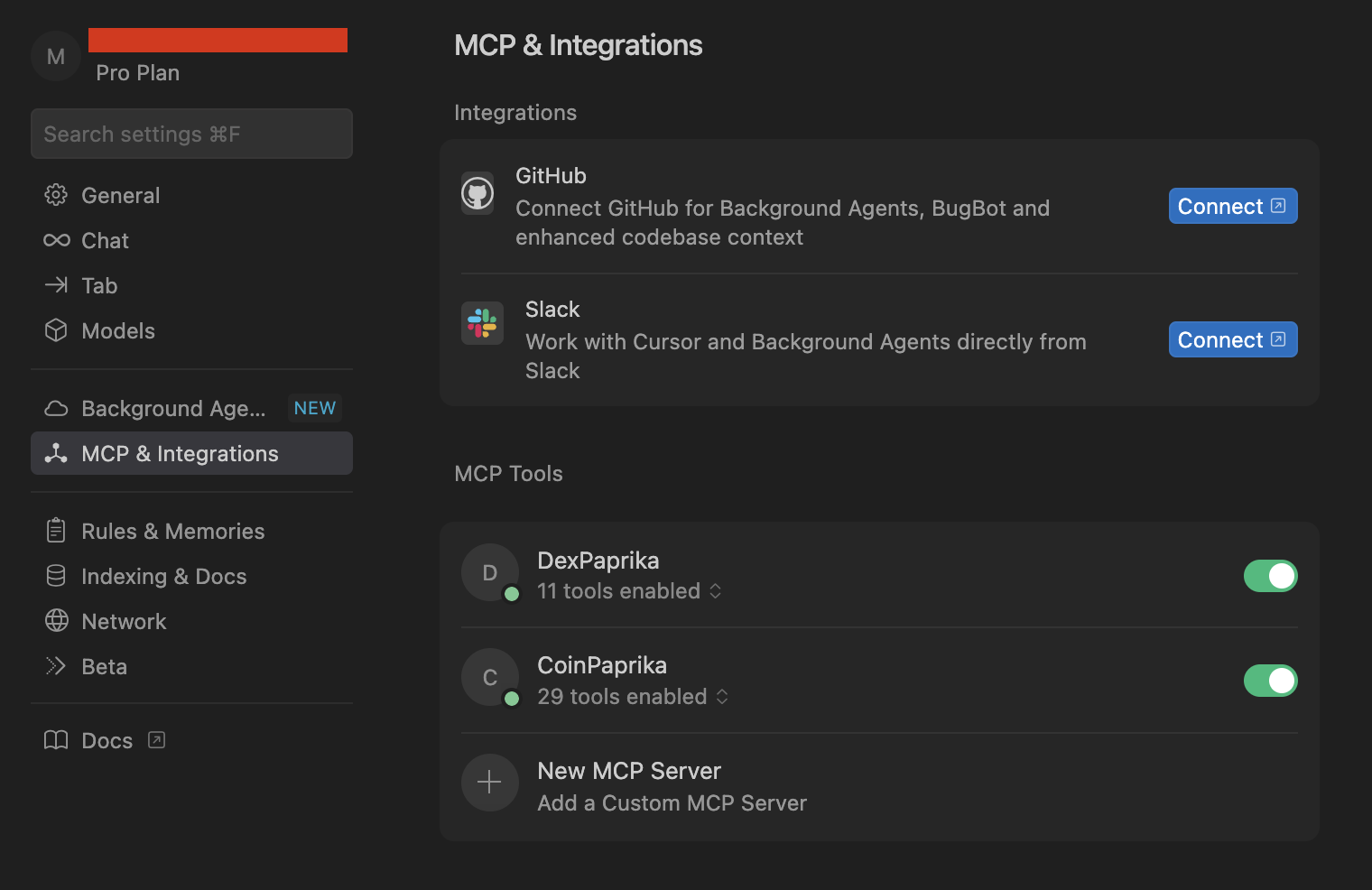 1. In the MCP server configuration dialog, enter:
* **Server name**: `coinpaprika`
* **Type**: `url` (select from dropdown)
* **URL**: `https://mcp.coinpaprika.com/sse`
2. Click **Install** to complete the setup
3. Restart Cursor if prompted
1. In the MCP server configuration dialog, enter:
* **Server name**: `coinpaprika`
* **Type**: `url` (select from dropdown)
* **URL**: `https://mcp.coinpaprika.com/sse`
2. Click **Install** to complete the setup
3. Restart Cursor if prompted
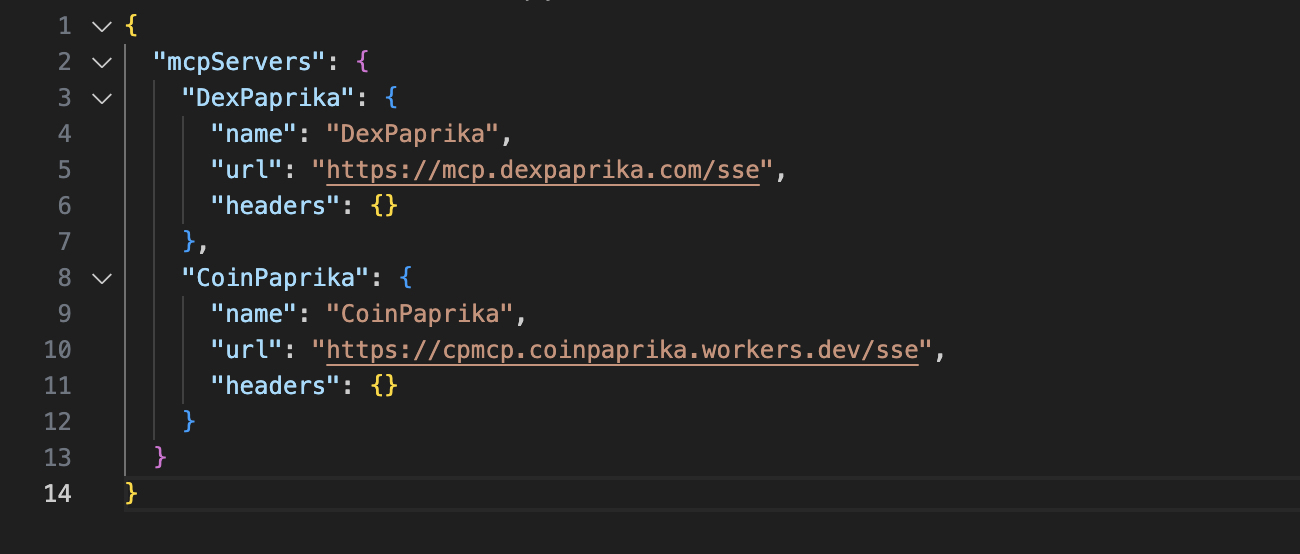 **Alternative method**: You can also configure Cursor to use any MCP servers configured in Claude Desktop by enabling the Claude Desktop integration in Cursor's settings.
## Verification
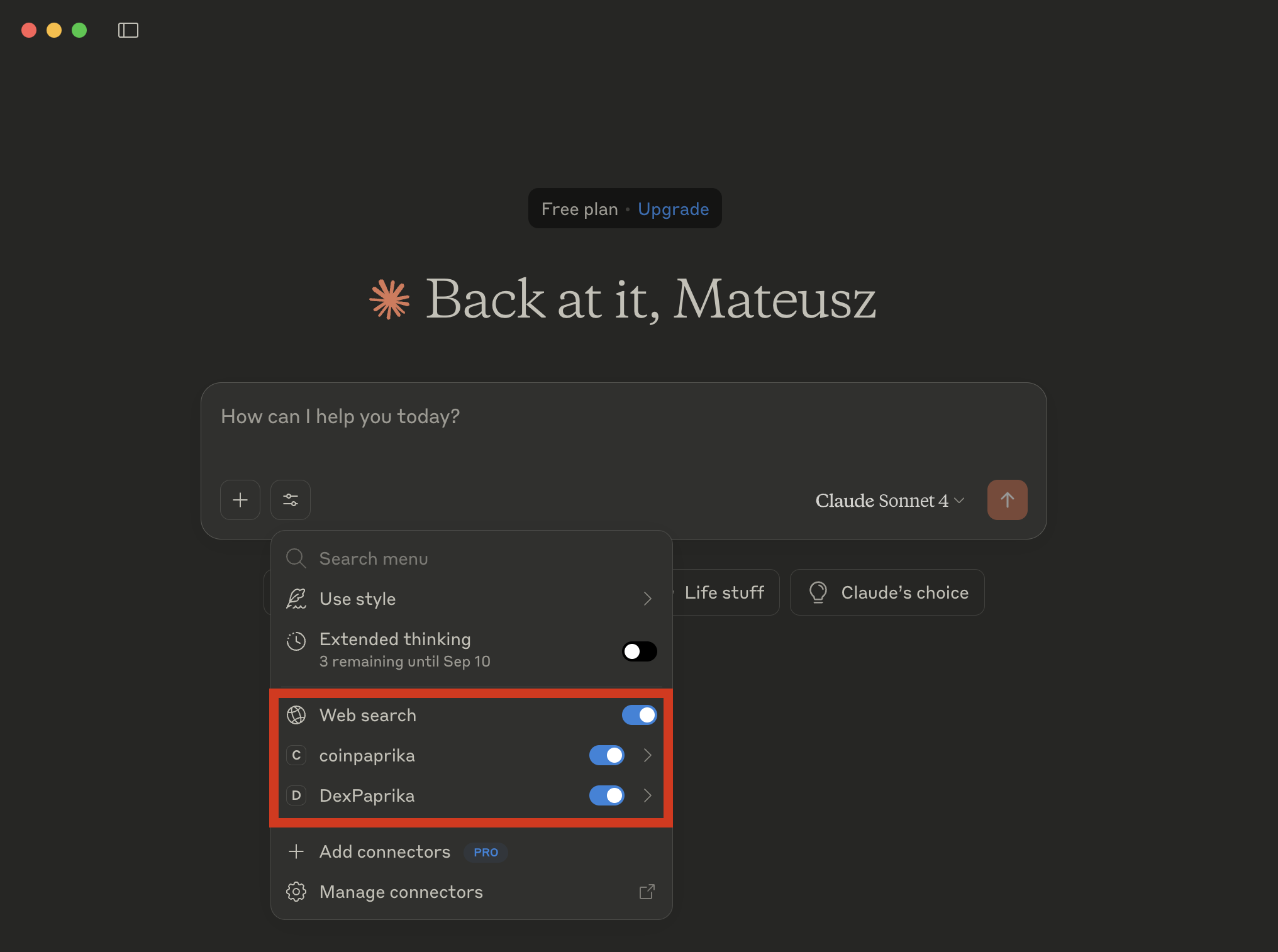
After restarting, you should see:
* **CoinPaprika tools** available in your AI assistant
* **Cryptocurrency data access** through natural language queries
* **Real-time market information** at your fingertips
**Alternative method**: You can also configure Cursor to use any MCP servers configured in Claude Desktop by enabling the Claude Desktop integration in Cursor's settings.
## Verification
After restarting, you should see:
* **CoinPaprika tools** available in your AI assistant
* **Cryptocurrency data access** through natural language queries
* **Real-time market information** at your fingertips
 ## Example Usage
Once connected, you can ask questions like:
### Basic market data
* "What's the current price of Bitcoin?"
* "Show me the top 10 cryptocurrencies by market cap"
* "What's the 24-hour volume for Ethereum?"
### Advanced queries
* "Search for tokens related to DeFi"
* "Compare the market caps of Bitcoin and Ethereum"
* "What are the biggest gainers in the last 24 hours?"
### Portfolio analysis
* "How has my portfolio performed today?"
* "What's the total market cap of all cryptocurrencies?"
* "Show me the correlation between Bitcoin and altcoins"
## Troubleshooting
**Symptoms**: CoinPaprika tools don't show up in your AI assistant.
**Solutions**:
1. Ensure you've restarted the application after configuration
2. Check that the configuration file syntax is valid JSON
3. Verify the `mcp-remote` package is available via npx
4. Try removing and re-adding the MCP server configuration
**Symptoms**: Getting connection timeouts or errors.
**Solutions**:
1. Check your internet connection is stable
2. Verify the MCP server is operational at [status.coinpaprika.com](https://status.coinpaprika.com/)
3. Ensure no firewall is blocking the connection
4. Try using the JSON-RPC endpoint instead: `https://mcp.coinpaprika.com/json-rpc`
**Symptoms**: Can't locate the configuration file.
**Solutions**:
1. Create the directory structure if it doesn't exist:
* **macOS**: `mkdir -p ~/Library/Application\ Support/Claude/`
* **Windows**: Create the `Claude` folder in your `%APPDATA%` directory
2. Create the configuration file manually
3. Ensure proper JSON syntax
***
## What's Next?
Now that you're connected:
Make direct API calls to our MCP server with practical examples
Discover all the cryptocurrency data tools at your disposal
***
## Need Help?
Connect with our community for real-time support and discussions
Contact our team for technical assistance and custom integrations
**Building something amazing?** Share your CoinPaprika MCP integrations with our community! We love seeing what developers build with our tools. [Reach out](mailto:support@coinpaprika.com) to showcase your work.
## Example Usage
Once connected, you can ask questions like:
### Basic market data
* "What's the current price of Bitcoin?"
* "Show me the top 10 cryptocurrencies by market cap"
* "What's the 24-hour volume for Ethereum?"
### Advanced queries
* "Search for tokens related to DeFi"
* "Compare the market caps of Bitcoin and Ethereum"
* "What are the biggest gainers in the last 24 hours?"
### Portfolio analysis
* "How has my portfolio performed today?"
* "What's the total market cap of all cryptocurrencies?"
* "Show me the correlation between Bitcoin and altcoins"
## Troubleshooting
**Symptoms**: CoinPaprika tools don't show up in your AI assistant.
**Solutions**:
1. Ensure you've restarted the application after configuration
2. Check that the configuration file syntax is valid JSON
3. Verify the `mcp-remote` package is available via npx
4. Try removing and re-adding the MCP server configuration
**Symptoms**: Getting connection timeouts or errors.
**Solutions**:
1. Check your internet connection is stable
2. Verify the MCP server is operational at [status.coinpaprika.com](https://status.coinpaprika.com/)
3. Ensure no firewall is blocking the connection
4. Try using the JSON-RPC endpoint instead: `https://mcp.coinpaprika.com/json-rpc`
**Symptoms**: Can't locate the configuration file.
**Solutions**:
1. Create the directory structure if it doesn't exist:
* **macOS**: `mkdir -p ~/Library/Application\ Support/Claude/`
* **Windows**: Create the `Claude` folder in your `%APPDATA%` directory
2. Create the configuration file manually
3. Ensure proper JSON syntax
***
## What's Next?
Now that you're connected:
Make direct API calls to our MCP server with practical examples
Discover all the cryptocurrency data tools at your disposal
***
## Need Help?
Connect with our community for real-time support and discussions
Contact our team for technical assistance and custom integrations
**Building something amazing?** Share your CoinPaprika MCP integrations with our community! We love seeing what developers build with our tools. [Reach out](mailto:support@coinpaprika.com) to showcase your work.